
 Lietuviškai
 Deutsch
 Français
 Русский
 Español
 Polski
 Italiano
 Українська
 Čeština
 Português
 日本語
 Latviešu valoda
 Eesti
 Magyar
 Bahasa Indonesia
 Türkçe
 हिन्दी
 Ελληνικά
 العربية
 ไทย
 Tiếng Việt
 Română
 Bahasa Melayu
 বাংলা
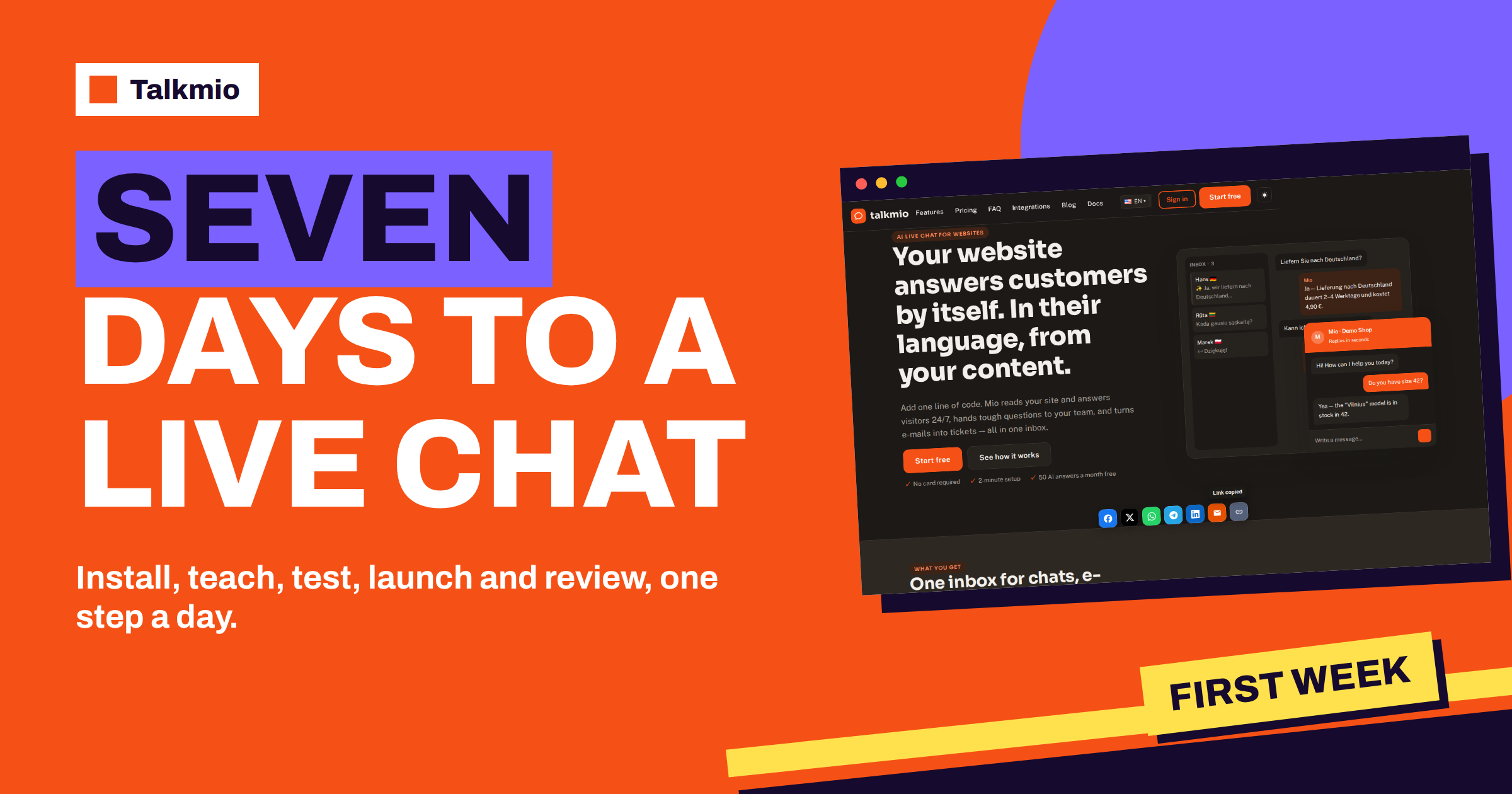
A Talkmio first week does not need to be a rush. Most of the work is small: paste one line of code, set a few widget options, teach Mio your content, test the answers and decide who watches the Inbox. What goes wrong is order. People publish the chat before Mio has read the right pages, or they teach Mio carefully and forget to test the hand-off, or they launch and never look at the results. A plan that spreads the steps over seven days, with a clear goal for each day, removes that risk. This guide gives you such a plan, built only from what the Talkmio documentation and the pricing page describe, so that by the end of the week the chat is live, tested and being reviewed.
The plan assumes a small team and an ordinary website. Each day is meant to take under an hour, and you can compress or stretch it. The examples are invented for illustration, and your own pages, prices and rules always come first.
The Talkmio First Week at a Glance
The table shows the whole week on one screen. Details for each day follow below.
| Day | Goal | Where in Talkmio | Done when |
|---|---|---|---|
| 1 | Account and install | Websites, then Add | The chat bubble appears on your site |
| 2 | Widget looks and texts | Websites, then your site | Colour, name, welcome and offline texts are set |
| 3 | Teach Mio | Mio AI, then Knowledge base | Website added, gaps filled with Q&A or text |
| 4 | Test answers and hand-off | Try Mio, then a private window | Twenty questions pass, a hand-off reaches the Inbox |
| 5 | Team and statuses | Team, then your status | Everyone knows their role and the mobile app works |
| 6 | Go-live checks | Home, Inbox, Visitors | The checklist is complete and filters are understood |
| 7 | First review | Inbox, then Reports | You list what to fix and choose a plan |
Nothing here needs a card. The pricing page says the Free plan needs no card and includes one operator, one website, 50 AI answers a month, 50 tickets a month and 20 knowledge base pages, so the whole Talkmio first week can run on Free. If you want more room, Pro and Ultimate start with a 14-day trial.
Day 1: Create the Account and Install the Widget
Create a free account at app.talkmio.com and confirm your e-mail. Open Websites and choose Add. You receive a site key and an install snippet. There are two ways to install, and the choice is simple. If your site runs WordPress, install the Talkmio WordPress plugin and enter the site key in Settings. Otherwise paste the snippet before the closing body tag on every page. The documentation gives platform notes: on Shopify, edit theme.liquid under Online Store; on Wix, Squarespace and Webflow, use the custom code area in the footer. Our guides to the script tag install and the Talkmio WordPress plugin cover both routes in detail.
Open your site in a private window. If the chat bubble appears in the corner, day one is done. The Home page in Talkmio shows a checklist until everything is set, which makes a useful progress bar for the rest of the week. Do not publish announcements yet; the bubble is live, but Mio knows nothing, and the next two days fix that.
Day 2: Make the Widget Yours
Open Websites and choose your site. The documentation lists what you can set: colour, position, assistant name, welcome text, offline text, the pre-chat form (none, optional or required), language (auto-detect or fixed), business hours and the “Powered by Talkmio” line, which is hidden on paid plans. Changes apply within five minutes. Keep it plain. Pick a colour that matches your brand and a position that does not cover a cookie banner or a call-to-action button. Write a welcome text that says what the chat can do, such as “Ask about prices, delivery or opening hours”. Write an offline text that says when you will reply. Start with the pre-chat form set to none or optional; you can tighten it later, once you see how visitors behave.
Set the business hours honestly. The hours decide what visitors are told when nobody is online, so they should match the days your team really reads the Inbox. If you work from nine to five on weekdays, say so, and let Mio carry the evenings and weekends.
Day 3: Teach Mio From Your Own Content
Open Mio AI and then the Knowledge base. Add your website. The documentation says Mio reads every public page on the same domain, respecting robots.txt. Then add what the site does not say: question and answer pairs, free text, or files such as PDF, DOCX, TXT, MD, CSV and HTML up to 15 MB. The plan limits how many pages Mio keeps, with 20 on Free, 200 on Pro and 1000 on Ultimate, so prefer short, dense sources over long ones. A good knowledge base is short, current and written in the words customers use.
Then write the business instructions. They tell Mio what you sell, which tone to use and what it must never promise. A useful first rule is the one the documentation itself gives as an example: never quote delivery dates, and hand order questions to the team. Add one rule for each promise you cannot afford to make, such as a refund, a discount or a medical or legal statement. Our guide to a multilingual knowledge base explains how a question in one language finds an answer written in another.
Day 4: Test the Answers and the Hand-Off
Testing is the day that protects your reputation. Open Try Mio, which shows the answer, which knowledge pieces were used and how long it took. Write twenty questions the way customers type them, with typos and short phrases. Include five that you want answered, five where the answer is a price or a policy, five that need a person and five that Mio should refuse. For each, read the answer and the pieces used. If a wrong piece was used, fix the source; if no piece was used, add one. Our guide to testing answers in Try Mio shows a full routine.
Then test the hand-off for real. In a private window on your live site, ask for a person. According to the documentation, the chat gets a “needs human” badge, you receive a browser notification in the Inbox, and if nobody is online an e-mail and a push notification on the mobile app arrive instead. Reply from the Inbox and confirm that Mio stays out once a person replies. Our guide to hand-off to a human in Talkmio lists the cases.
Day 5: Set Up the Team and Statuses
Open Team and invite operators. The documentation describes three roles: Agents handle conversations, Admins also manage websites, Mio, channels and settings, and the Owner handles billing. Give Admin only to those who change settings. Each member sets a status: Online, Away or Offline. Seats depend on your plan, with one on Free, three on Pro and ten on Ultimate. Install the mobile app for iOS or Android if your team answers away from a desk. It shows the Inbox, conversations, live visitors and your status, and it sends push notifications for new messages, hand-offs and tickets. Sign in with your Talkmio e-mail and password.
Agree on one rule for the team: who looks at the Inbox first each morning. A shared Inbox without an owner is the most common reason a good chat feels slow. The filters Unassigned and Unanswered make that daily check quick, and you can set a response time target under Settings, after which a conversation without a first reply gets an “overdue” badge.
Day 6: Go-Live Checks
Today you decide whether the chat is ready for everyone. Walk through a short list.
- The Home checklist in Talkmio shows no open item.
- The widget appears on desktop and on a phone, and it does not cover other buttons.
- Try Mio passes your twenty questions, and the hand-off reaches the Inbox with a badge.
- The offline text and the business hours say what you can really deliver.
- Someone owns the Inbox in the morning and someone covers the evening, or Mio covers it with the offline flow.
- Your privacy information mentions the chat; the documentation says data is stored on servers in the EU, in Germany.
Open Visitors as well. It shows who is on your site right now, with country, page, device and source, and it lets you start a chat. You do not need it on day six, but seeing real visitors is a good sign that the widget works. If a point fails, fix it today and run the check again. The Talkmio first week is a plan, not a deadline, and a chat that goes live on day eight with every check passed beats one that goes live on day six with a gap.
Day 7: Review What Happened and Choose a Plan
By day seven you have a few real conversations. Open the Inbox and filter by Mio replied. Read every answer, and note any that were wrong, vague or off-tone. For each, fix the source or the instruction, use Re-read on changed sources and test the same question in Try Mio. Open Reports and note conversations per day, the share answered by Mio alone, hand-offs and first-reply time. The numbers are small after a week, so treat them as a baseline rather than a verdict. Our guide to AI answers per month helps you judge whether the monthly limit will be enough.
Then choose a plan on evidence. If you used far less than 50 answers and one operator copes, stay on Free. If you reached the limit, or need three operators, the e-mail channel or the removal of “Powered by Talkmio”, look at Pro. The pricing page lists the current prices in euros, with two months free on yearly billing.
What to Skip in Your First Week
Resist the temptation to do everything at once. You do not need to connect Messenger, Instagram or WhatsApp in the first week; the documentation says those channels are listed on the Ultimate and Enterprise plans, and a website chat is enough to learn from. You do not need to build a large library of quick replies; add one each time you type the same answer twice. You do not need to translate your pages, because Mio replies in the visitor’s language from your content. And you do not need to tune every setting; the defaults are sensible, and real conversations tell you what to change.
It also helps to keep a short notes page during the week. Write down each question Mio could not answer, each rule you added and each source you changed. On day seven that page becomes your to-do list, and a month later it becomes a record of why the chat answers as it does. When you hand the chat to a colleague, the notes page is the best onboarding document you can give. The Talkmio first week then becomes a routine you can repeat for the next website or the next language.
After the Talkmio First Week: A Simple Rhythm
When the first week ends, shrink the routine instead of dropping it. Each morning, open Unanswered and reply. Once a week, read five conversations under Mio replied and check that prices and policies are current. Once a month, open Reports and compare the numbers with the last month. Whenever a page on your site changes, use Re-read on that source and test one question. Those four habits cost around thirty minutes a week, and they keep a chat accurate for years. A good onboarding ends with a habit, and the habit is what pays off.
Frequently Asked Questions
Can I really finish the Talkmio first week on the Free plan?
Yes. Free includes one operator, one website, 50 AI answers a month, 50 tickets a month, 20 knowledge base pages and 30 days of history, and it needs no card. That is enough to install, teach, test and review one small website in a week.
How long does each day take?
Plan on under an hour for most days. Day one is the install, which takes minutes, and days three and four take longest because you add content and run twenty test questions. A larger site with many pages or several languages needs more time on day three.
What if the chat bubble does not appear on day one?
Check that the snippet sits before the closing body tag on every page, or that the WordPress plugin has the correct site key in Settings. Open the site in a private window, because caching can hide the bubble. If it still fails, contact support through the contact page.
Should I tell customers about the chat during the first week?
Wait until day six or seven. Announce the chat after Try Mio passes your questions and the hand-off has reached the Inbox. Until then a quiet bubble is enough, and any early visitors give you free test conversations to review.
Do I need to connect WhatsApp or Instagram in week one?
No. The documentation says Messenger, Instagram and WhatsApp channels are listed on the Ultimate and Enterprise plans, and the first week is about getting the website chat right. Connect other channels later, once the content and the team routine work.
What should I check on day seven?
Read the conversations under Mio replied, fix any wrong or vague answer at its source, use Re-read and test again. Then open Reports for conversations per day, the share answered by Mio alone, hand-offs and first-reply time, and choose a plan.
The Bottom Line
The Talkmio first week is seven small steps in a sensible order: install, widget, knowledge, tests, team, go-live checks and review. Keep each day short, test the hand-off before you announce anything and let the first real conversations show you what to fix. Start free with Talkmio and put the plan on your calendar today.