
 Lietuviškai
 Deutsch
 Français
 Русский
 Español
 Polski
 Italiano
 Українська
 Čeština
 Português
 日本語
 Latviešu valoda
 Eesti
 Magyar
 Bahasa Indonesia
 Türkçe
 हिन्दी
 Ελληνικά
 العربية
 ไทย
 Tiếng Việt
 Română
 Bahasa Melayu
 বাংলা
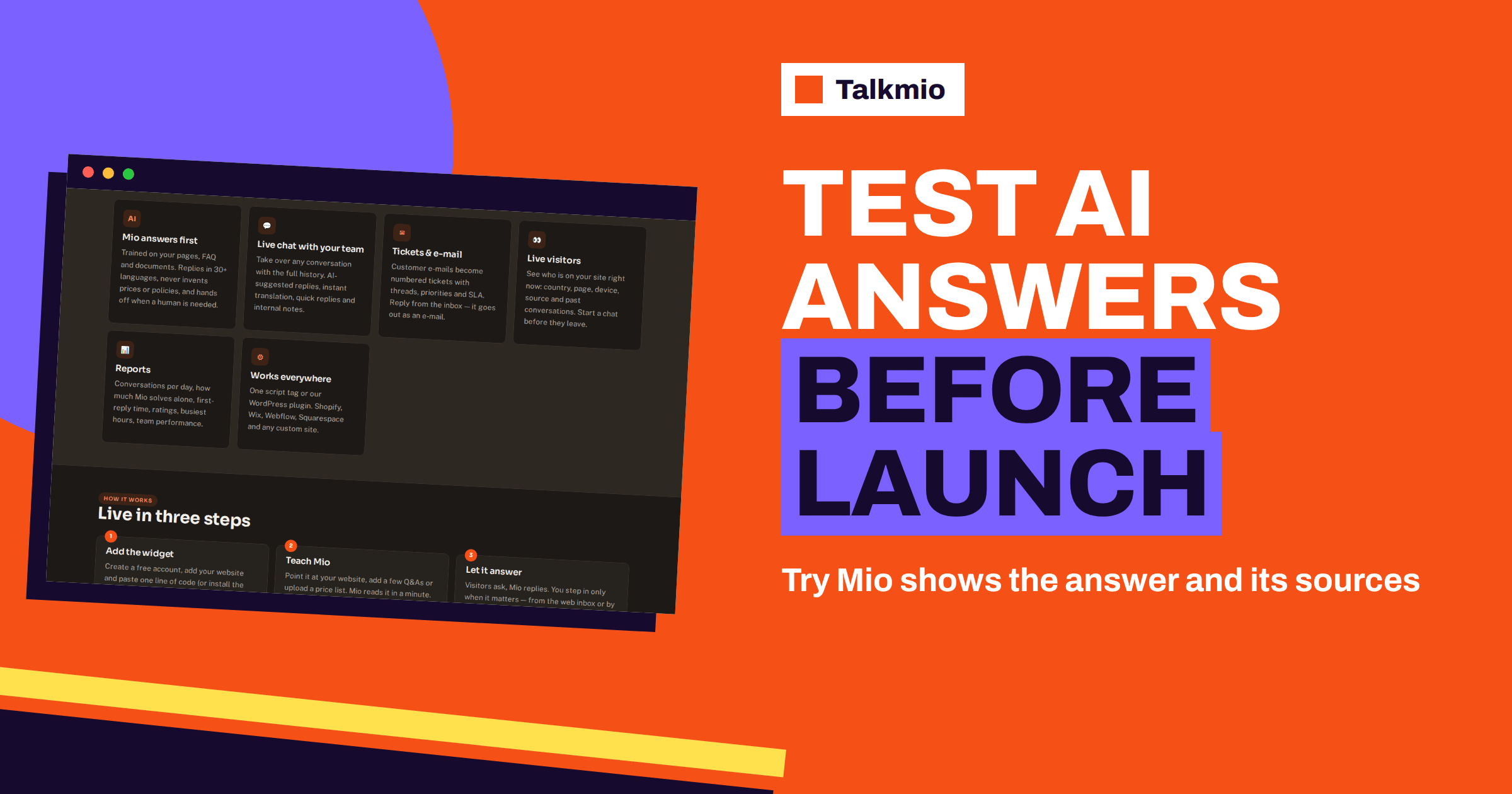
Try Mio is the testing tool inside Talkmio, and it is the safest place to find out what your AI assistant will say before a real visitor asks. You type a question, Mio answers, and you see three things: the answer itself, which knowledge pieces were used to build it and how long it took. That is enough to judge whether the assistant is correct, whether it is using the right sources and whether it is fast enough. This guide explains how to use Try Mio properly, how to build a test list that catches real problems and how to trace a wrong answer back to the page or instruction that caused it.
The facts below come from the Talkmio documentation, which describes it as the way to test answers before going live. Where the documentation does not say something, for example how test questions are counted, this article says so and tells you where to check.
What Try Mio Shows You
The documentation is brief and precise: use Try Mio to test answers before going live, and you will see the answer, which knowledge pieces were used and how long it took. Each of those three outputs answers a different question, and a good test uses all three.
| What Try Mio shows | The question it answers | What to do with it |
|---|---|---|
| The answer | Is the reply correct, complete and in the right tone? | Compare it with your own wording; note anything that is vague or too long |
| The knowledge pieces used | Where did this answer come from? | Open the source; fix, replace or remove it if it is wrong or outdated |
| The time it took | Is the assistant fast enough for a live visitor? | Watch for unusually slow answers and test again; compare similar questions |
The second row is the one people underestimate. A correct answer from the wrong source is a warning, since it may turn into a wrong answer when the source changes. A wrong answer with a visible source is a gift: you know exactly what to fix.
Why You Should Test Before You Go Live
Mio answers only from your content: your website, your FAQ and the documents you upload. That design is what keeps it from inventing prices or policies, but it also means the quality of every answer depends on the quality of your content. Websites are written for people who read in order, with context. A page about delivery may say “see the table above”, and a pricing page may rely on a banner that Mio does not read the same way. The only way to know how your content behaves in a conversation is to ask.
Testing also protects your reputation in a quiet way. A visitor who receives a wrong answer from a chat widget does not file a bug report; they leave, and they remember. A test session of thirty minutes before launch costs far less than that. Our guide to testing an AI chatbot before launch describes the general method, and this article shows how Try Mio fits into it.
Build a Test List for Try Mio
Do not improvise. Write the questions down first, so that you can repeat them after every change. A good list has thirty to fifty questions and covers six groups.
- Everyday facts: opening hours, location, contact routes, what you sell, who it is for. These must be right every time.
- Prices and plans: the cheapest option, the most common option, what is included, what costs extra. Mio never invents prices, so a missing price should give a careful answer or a hand-off, not a guess.
- Policies: delivery, returns, cancellations, warranty, invoices. Ask them the way a customer would, not the way your policy page is written.
- Edge cases: a question that combines two topics, or one that your pages answer only indirectly.
- Out-of-scope questions: things you do not do. The best answer is a polite statement that this is not something you handle.
- Questions in other languages: at least two or three, because Mio replies in the visitor’s language and finds answers written in another.
Write each question as a real person would type it, including a typo or two. Visitors do not write in complete sentences, and your test should not either. For each question, add one line about what a good answer contains. That line is your answer key.
Read Each Answer in Three Passes
When Mio answers in the test window, resist the urge to judge in one glance. Three short passes work better.
Pass One: Is It Correct?
Compare the answer with the truth, not with the page. If the page is out of date, a faithful answer will still be wrong, and that is useful to know. Check numbers, dates and conditions line by line. If the question had two parts, check that both were answered.
Pass Two: Does It Come From the Right Sources?
Look at the knowledge pieces listed with the answer. Do they match the topic? Are they the current version of the page? If the pieces come from an old blog post instead of the current policy page, the answer may be right today and wrong tomorrow. Note the source and decide whether to keep it.
Pass Three: Does It Sound Like You?
Read the tone, the length and the structure. Business instructions control the tone Mio uses, what you sell and what it must never promise. If the answer is too long, too casual or too eager, adjust the instructions rather than editing the knowledge base. Our guide to conflicting sources in an AI chatbot shows what to do when two pages disagree.
Trace a Wrong Answer Back to Its Cause
The tool is most valuable when an answer is wrong. The knowledge pieces point you to the cause. Most problems fall into a small number of patterns, and each has a clear fix.
| What you see | Likely cause | Fix |
|---|---|---|
| A vague answer, no useful pieces | The content does not contain the answer | Add a page, a question and answer pair or a short text with the fact |
| A confident answer from an old page | Outdated source | Update the page, then use Re-read so Mio reads the new version |
| Two different facts in one answer | Conflicting sources | Make one page the authority and remove or correct the other |
| An answer that promises too much | Missing rule in the business instructions | Add a rule, for example never to quote delivery dates |
| A correct answer but slow | Large or crowded sources, or a one-off delay | Repeat the test; if it persists, check which pieces are used and tidy them |
The documentation says sources are re-read on demand with the Re-read option, and that your plan limits how many pages Mio can keep. If you add many pages for a test, check that you are still within the limit. Our guide to an AI chatbot that is not finding answers goes through the common reasons in more detail.
Test Hand-Offs in the Real Chat, Not Only in Try Mio
It is built to test answers. Hand-offs are a different part of the system: Mio passes the chat to a person when it cannot answer from your content, when the visitor asks for one, when the visitor complains or when the visitor asks about a specific order. To see that flow end to end, open your website in a private browser window, type a question that should trigger a hand-off and watch what the visitor sees and what arrives in your Inbox. The conversation should show a “needs human” badge, and you should receive a browser notification in the Inbox. Do this once for each trigger.
The private window also tests the widget itself: the colour, the welcome text, the pre-chat form and the language setting. Changes to the widget settings apply within five minutes, so wait that long after you change something before you judge it.
Check Languages With Try Mio
Mio replies in the language the visitor writes in, and the documentation notes that questions in one language find answers written in another, for example a Lithuanian question and an English FAQ. The tool is a good place to confirm that this works for your content. Ask the same question in two or three languages that your visitors use, and compare the answers. Look for facts that change between languages, such as prices, dates or conditions. If they do, the cause is usually a source in one language that is more complete than another. Add the missing fact in your main language, and the other languages follow.
Make Try Mio a Routine After Every Change
A test list is worth more when it is repeated. Run it at four moments:
- Before you go live, in full.
- After a large content change, such as a new price list, a new delivery policy or a redesigned site. After a redesign, Re-read the website first.
- After you change the business instructions, since a new rule can alter many answers at once.
- Once a month, with ten questions chosen from real conversations in the Inbox.
Keep the list in a spreadsheet with the question, the expected answer, the date and the result. A column for the date lets you see when an answer changed. Software people call this regression testing: you run the same checks again after each change, to be sure that a fix in one place did not break something elsewhere. The same idea applies to any testing of a system that learns from content.
Try Mio and Your Plan Limits
The documentation does not say whether test questions count towards your monthly AI answers. Do not assume either way. Before a large test session, note your usage on the Subscription page, run the session and check again. The Free plan includes 50 AI answers a month, Pro 1000 and Ultimate 5000, according to the pricing page, so on the Free plan it makes sense to keep the test list short and focused. Plans and limits can change, so read the documentation and the pricing page for the current rules.
Knowledge base pages are limited too: 20 on Free, 200 on Pro and 1000 on Ultimate. A tidy knowledge base with fewer, better pages often answers better than a crowded one, and it leaves room to grow.
Mistakes to Avoid When You Use Try Mio
- Testing only the easy questions: the questions that matter are the awkward ones, the combined ones and the ones with a trap.
- Fixing the symptom: if you correct an answer by adding a duplicate fact, you may create a conflict. Fix the source.
- Judging on one try: run an important question two or three times, in different words.
- Forgetting to Re-read: after you edit a page, ask Mio to re-read it, or the old version stays in use.
- Not testing hand-offs: a perfect answer is only half of the system; the other half is what happens when Mio cannot answer.
Frequently Asked Questions
What does Try Mio show?
According to the documentation, it shows the answer Mio would give, which knowledge pieces were used to build it and how long it took. That lets you judge correctness, trace the sources and check speed before real visitors ask the same question.
Can Try Mio fix a wrong answer for me?
No. It shows what Mio would answer and why. You fix the cause yourself: add or correct a page, a question and answer pair or a file, adjust the business instructions and use Re-read so the sources are refreshed. Then test again.
How many questions should my test list have?
Thirty to fifty is a practical size for a small business. Cover everyday facts, prices, policies, edge cases, out-of-scope questions and a few questions in other languages, and write a short answer key for each one so the test can be repeated.
Does Try Mio test hand-offs to a person?
It is described as a way to test answers. To see hand-offs, open your website in a private window and ask a question Mio cannot answer, ask for a person or ask about an order. Then check the badge and notification in your Inbox.
Do test questions use up my AI answers?
The documentation does not say. Check your usage on the Subscription page before and after a test session, and keep the list short on the Free plan, which includes 50 AI answers a month according to the pricing page.
How often should I run my test list?
Run the full list before you go live and after big content or instruction changes. Then run a short set of ten questions monthly, taken from real conversations in your Inbox, so that you notice drift before visitors do.
The Bottom Line
Try Mio turns the question “will the assistant get this right?” into something you can check in a few minutes. Write a test list, read each answer in three passes, follow the knowledge pieces back to the source and fix the cause, not the symptom. Then repeat the list after every important change. Start free with Talkmio, add your website and use Try Mio on your thirty most important questions before you paste the snippet into your site.