
 Lietuviškai
 Deutsch
 Français
 Русский
 Español
 Polski
 Italiano
 Українська
 Čeština
 Português
 日本語
 Latviešu valoda
 Eesti
 Magyar
 Bahasa Indonesia
 Türkçe
 हिन्दी
 Ελληνικά
 العربية
 ไทย
 Tiếng Việt
 Română
 Bahasa Melayu
 বাংলা
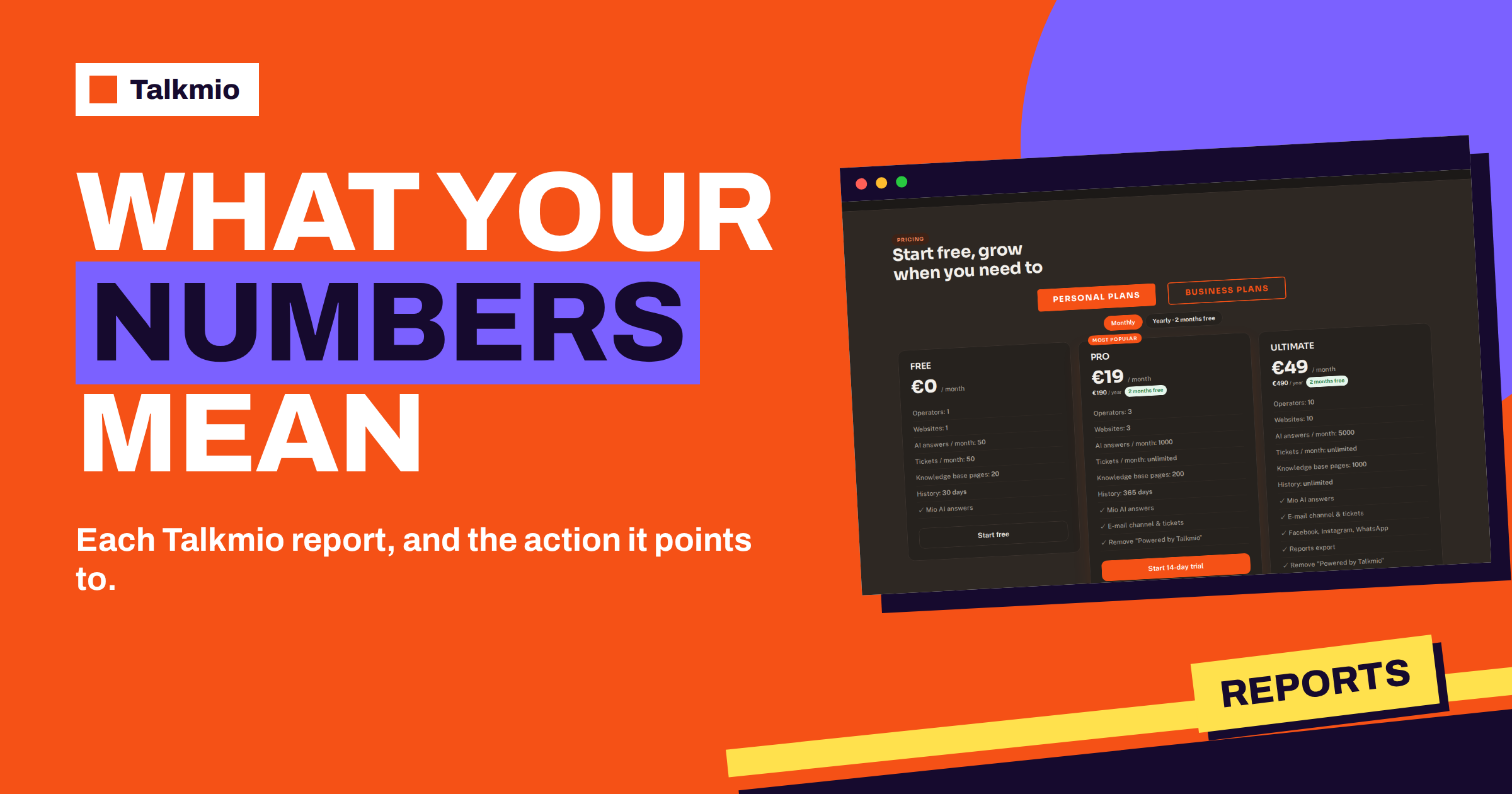
Talkmio reports exist to answer a small number of practical questions: how many people wrote, how many of them Mio helped alone, how many needed a person, how fast the team replied and when the chat is busiest. A dashboard full of numbers is useless unless each number points to something you can change. This guide goes through the Talkmio reports one by one, as the documentation describes them, and for each one explains what it answers, what a worrying pattern looks like and what to do about it. All numbers in the examples are invented for illustration. Your own figures, goals and plan limits decide what is good for your business.
The documentation lists what Reports covers: conversations per day with chats and tickets shown separately, the share answered by Mio alone, hand-offs, first-reply time, ratings, busiest hours in your time zone, channels, countries, team performance and Mio usage. CSV export is a feature of the Ultimate plan, according to the pricing page. The rest of this article follows that list.
Talkmio Reports at a Glance
The table maps each report to the question it answers and the first action to take.
| Report | Question it answers | First action when it looks wrong |
|---|---|---|
| Conversations per day | How much demand is there, and how is it split between chats and tickets? | Plan staffing; check whether pages cause spikes |
| Share answered by Mio alone | How much does Mio close without a person? | Read the hand-offs and add missing content |
| Hand-offs | Which questions need a human? | Decide: teach Mio, or keep them with the team |
| First-reply time | How long does a visitor wait for a first answer? | Check the Inbox routine and the response target |
| Ratings | Are visitors happy with the answers? | Read the low-rated conversations |
| Busiest hours | When do people write? | Align business hours and shifts |
| Channels and countries | Where do conversations come from? | Check languages and the channels in use |
| Team performance | Who handles what, and how fast? | Rebalance assignments, not blame |
| Mio usage | How many AI answers are used? | Compare with your plan’s monthly limit |
Use the table as a checklist for a weekly review. You do not have to act on every row each week; pick the one where the number looks furthest from what you expected.
Conversations Per Day: Chats Versus Tickets
The first of the Talkmio reports shows conversations per day, with chats and tickets counted separately. It answers the simplest question: how much is there to do? A steady line tells you that one routine works every day. A line with sharp peaks tells you that something drives visitors to write at once: a newsletter, a price change, a delivery delay or a seasonal rush. When you see a peak, open the Inbox for that day and read a few conversations. The reason is usually written there, and the fix is usually a page: a clearer delivery page, a visible price note or a short free-text source for Mio.
The split between chats and tickets matters too. The documentation says every conversation can become a numbered ticket, and that on Pro and Ultimate you can also use the e-mail channel, where forwarded mail becomes tickets. A growing share of tickets means more of your support is asynchronous, and your routine should match: tickets need an owner, a priority and a status, while chats need someone present or Mio’s offline flow.
Share Answered by Mio Alone
This is the number most owners look at first, and the one most often misread. It shows how much of the conversation volume Mio handled without a person stepping in. A higher share is not automatically better. It is good if the answers were right, and it is a problem if Mio answered what it should have passed on. So read the share together with the ratings and with a sample of conversations under the Mio replied filter.
If the share is low, the cause is usually content: the knowledge base lacks the answers visitors ask for. Open the hand-offs, group them by topic and add what is missing as a page, a question and answer pair or a free-text note. Then use Re-read on changed sources and test the same questions in Try Mio. If the share is very high and you worry about quality, check that the business instructions send sensitive topics to a person. Our guide to hand-off to a human in Talkmio lists the cases the documentation describes.
Hand-Offs: The Most Useful of the Talkmio Reports
Hand-offs show how often Mio passed a conversation to a person. They are the most useful of the Talkmio reports for improving the chat, because each hand-off is a lesson. Some hand-offs are intended: visitors asked for a person, complained or asked about a specific order. Others are gaps: Mio could not answer from your content. Separate the two when you review. For the gaps, write the missing content. For the intended ones, check that the team replies quickly, because a visitor who asked for a person is waiting.
A simple weekly habit works well. Open ten hand-offs, label each as intended or a gap and fix the gaps. After a month, the share answered by Mio alone rises for the right reason: the content got better. This is also how you decide what Mio should never answer. If a topic keeps coming back and you do not want Mio to handle it, write a rule in the business instructions.
First-Reply Time and the Response Target
First-reply time shows how long visitors wait before getting an answer, from Mio or from a person. It is the number visitors feel. The documentation says you can set a response time target under Settings, and a conversation without a first reply within that time gets an “overdue” badge in the Inbox. Combine the report and the badge: the report shows the trend, and the badge shows what to answer right now.
When first-reply time is long, check the routine before the technology. Who opens the Inbox first? Is Unanswered the first filter they use? Are statuses honest, so that an operator marked Online is really there? Are business hours accurate? Often the fix is a rule such as “the first person in opens Unanswered and assigns everything”, not a new tool. Our guide to AI answers per month explains the other side of speed, the monthly limit that Mio works within.
Ratings: Read the Low Ones
Ratings show how visitors judged the conversations. Averages hide the useful part, so open the low-rated conversations instead. Look for patterns: a wrong price, a missed hand-off, a rude tone, a slow reply. Fix the cause at its source, whether a page, an instruction or a routine. Do not chase a perfect average; a few low ratings are normal, and the reasons behind them are worth more than the number. For the wider topic, see the overview of customer satisfaction.
Busiest Hours, Channels and Countries
The busiest hours chart is shown in your time zone, which is exactly what you need for planning. If most conversations arrive in the evening and your team works nine to five, Mio carries the evening and the Inbox waits for the morning. In that case, check the offline text and the morning routine. If the peak falls at lunchtime, make sure someone is online then and adjust business hours. Channels show where conversations came from, such as the website chat or connected channels. Countries show where visitors are, which helps you check that the languages Mio answers in match your audience. Our guide to a multilingual knowledge base explains how Mio finds answers across languages.
Team Performance and Mio Usage
Team performance shows how each person handles conversations. Use it to balance work and to find who needs help, not to rank people. If one agent carries most conversations, review assignments. If replies are slow at a certain time, adjust shifts. Mio usage shows how many AI answers have been used, which you compare with the monthly allowance of your plan: 50 on Free, 1000 on Pro and 5000 on Ultimate, according to the pricing page. If you approach the limit early in the month, look at which questions repeat. Sometimes one popular page makes Mio answer the same thing a hundred times; a clearer page or a visible note on the site can reduce it.
A 15-Minute Weekly Review of Your Talkmio Reports
A review needs to be short, or it will not happen. Here is a routine that takes fifteen minutes.
- Open conversations per day and look for a spike. If there is one, read two conversations from that day.
- Check the share answered by Mio alone and the ratings together.
- Open ten hand-offs, label them and write one piece of missing content.
- Check first-reply time and the number of overdue conversations.
- Look at busiest hours and confirm business hours still match.
- Compare Mio usage with the plan limit.
Write one sentence at the end: what you will change this week. Over a quarter, those sentences become the history of your chat, and the Talkmio reports show whether the changes worked. If you export to CSV on the Ultimate plan, our guide to the Talkmio reports CSV export shows how to keep a monthly record in a spreadsheet. See also the pricing page for which plan includes the export.
Reading Talkmio Reports Over Time
A single week of data is a snapshot, and a quarter of data is a story. The most valuable use of Talkmio reports is comparison: this month against last month, the week before a change against the week after, a quiet season against a busy one. Before you change something, such as adding a batch of pages or changing the hours, write down the current numbers. After two weeks, look again. If the share answered by Mio alone rose and ratings held, the change worked. If hand-offs rose, the new content may have raised new questions, which is not a failure but a map of what to write next.
Be careful with small samples. If you receive twenty conversations a week, one unusual day moves every percentage. In that case, trust the conversations more than the charts: read them, and use the numbers only as a prompt. As volume grows, the charts become more reliable, and you can set simple goals such as a first-reply time target for the team or a share answered by Mio alone that you want to reach without a drop in ratings.
Finally, share the numbers. A short monthly note to the owner or the team, with three figures and one action, keeps the chat on the agenda. For general background on measuring support, see the overview of customer service. The aim is not to produce reports for their own sake but to make the next month better than the last. Treat Talkmio reports as a conversation with your own customers, one that you can read every week.
Frequently Asked Questions
Which of the Talkmio reports should I check first?
Start with the share answered by Mio alone together with the hand-offs, because they show where content is missing. Then check first-reply time, which visitors feel most. Once those two look right, the other reports help you plan hours, languages and staffing.
Is a higher share answered by Mio alone always better?
No. It is better only if the answers are right. Read ratings and a sample of conversations under Mio replied. A very high share can hide a topic that should have gone to a person, which you fix with a rule in the business instructions.
How do I lower first-reply time?
Check the routine first: who opens the Inbox, whether Unanswered is the first filter and whether business hours and statuses are honest. Set a response time target in Settings so overdue conversations get a badge, and let Mio answer routine questions at once.
Can I see which countries my visitors come from?
Yes. The documentation lists countries among the report topics, alongside channels, busiest hours in your time zone, team performance and Mio usage. Use it to check that the languages and content you offer match the people who actually write.
Do the reports show how many AI answers I have used?
Yes, Mio usage is part of Reports. Compare it with your plan’s monthly allowance: 50 AI answers on Free, 1000 on Pro and 5000 on Ultimate. If usage climbs early in the month, look for repeated questions that a clearer page could settle.
Can I export the reports?
The pricing page lists reports export on the Ultimate and Enterprise plans, and the documentation mentions CSV export. Use it to keep a monthly record in a spreadsheet and to compare periods, for example before and after you add new content.
The Bottom Line
Talkmio reports are most useful when each number leads to one action: add content, fix the routine, adjust hours or review a plan. Spend fifteen minutes a week, read the hand-offs rather than only the averages and write down the one thing you will change. Start free with Talkmio and let the numbers guide the next improvement.