
 Lietuviškai
 Deutsch
 Français
 Русский
 Español
 Polski
 Italiano
 Українська
 Čeština
 Português
 日本語
日本語 Latviešu valoda
 Eesti
Eesti Magyar
 Bahasa Indonesia
 Türkçe
 हिन्दी
 Ελληνικά
 العربية
 ไทย
ไทย Tiếng Việt
 Română
 Bahasa Melayu
 বাংলা
বাংলা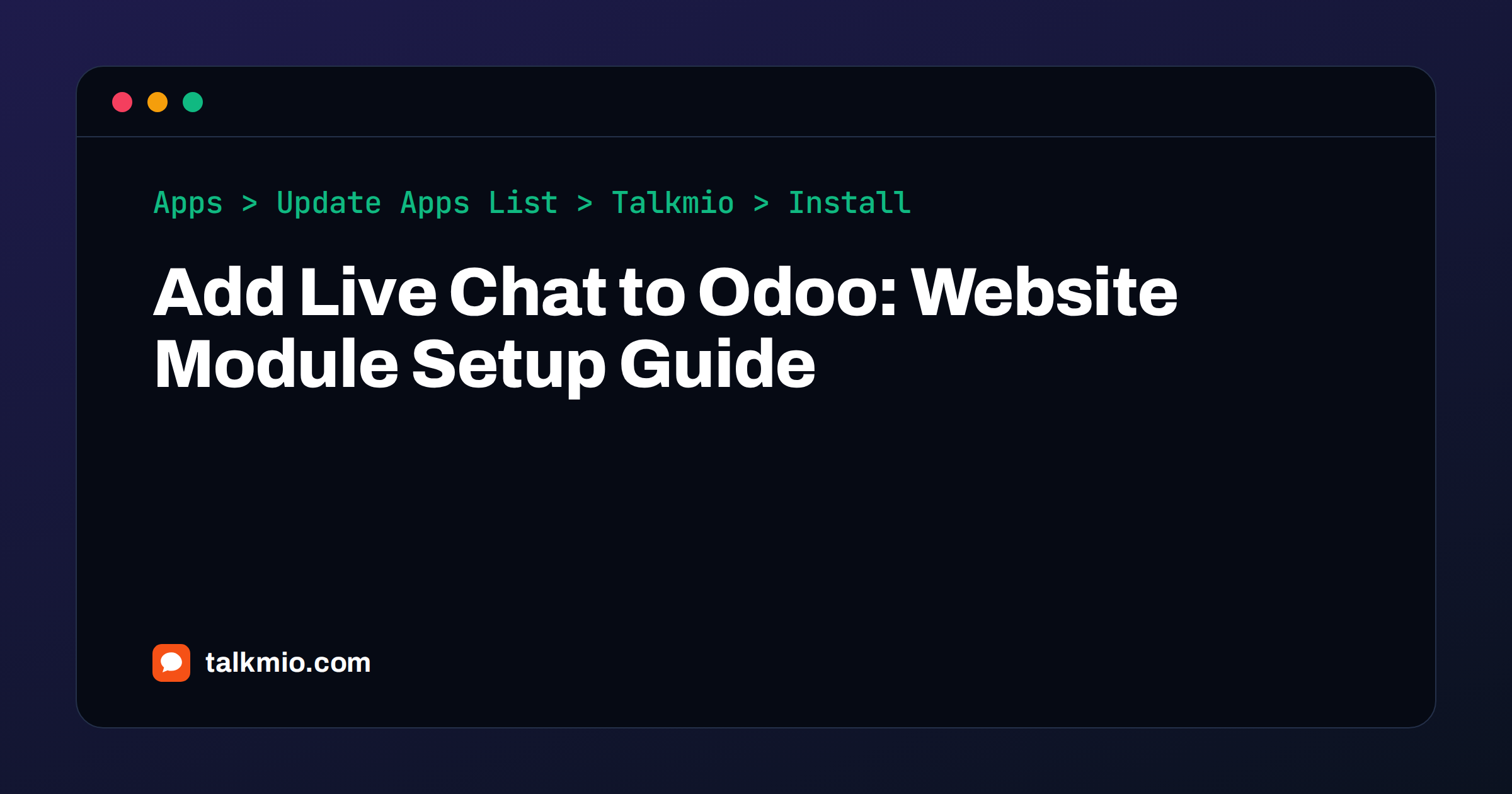
To add live chat to Odoo, install the Talkmio website module, paste your site key into the website settings and the chat bubble appears on every page of your Odoo site. Mio, the AI assistant, then answers visitors from your own content and hands the conversation to your team when a person is needed. The module is built for Odoo 16 and 17, and a plain script tag covers everything else.
This guide covers the module install on a self-hosted server and on Odoo.sh, the settings screen, the script-tag route for setups where you cannot add modules, how to identify signed-in portal users and a test plan you can run in ten minutes. The module details come from the Talkmio integrations page for Odoo, checked on 14 October 2026.
What You Need Before You Start
A short checklist saves a restart later.
- Odoo 16 or 17 with the Website app installed. The module adds its settings to the Website configuration, so the Website app has to be there.
- Access to the addons path, or an Odoo.sh project where you can push a custom module. You also need permission to restart the Odoo service.
- A free Talkmio account. Sign up at app.talkmio.com, confirm your e-mail, open Websites and add your domain. You get a 12-character site key. No card is needed for the Free plan.
- The module ZIP. Download
talkmio-odoo-1.0.0.zipfrom the Talkmio Odoo integration page.
The Free plan includes 1 operator, 1 website, 50 AI answers a month and 20 knowledge base pages. The pricing page shows what Pro and Ultimate add if your Odoo site grows.
Is the Odoo Module the Right Route for You
Odoo comes in several flavours, and the flavour decides how you add live chat to Odoo.
- Self-hosted Odoo (Community or Enterprise): you control the server, so the module is the natural choice.
- Odoo.sh: you can upload the module through your project, as the integration page describes for Apps in Odoo.sh.
- Odoo Online: third-party modules from a ZIP are generally not supported on the hosted service, so use the script-tag route in the section below. The official Odoo documentation explains what each hosting option allows.
If you are still choosing a platform, the Odoo Website app page lists what the website builder includes.
The practical difference is small for visitors. Both routes load the same widget. The module simply puts the key in a settings screen and also identifies signed-in portal users.
Install the Talkmio Module Step by Step
Step 1: Put the module in your addons path
Unzip the download. Inside you find a folder called website_talkmio. Copy that folder into one of the addons paths configured for your Odoo server, next to your other custom modules. On Odoo.sh, add the folder to your repository instead and push it, and Odoo.sh builds it as it does any custom module.
Step 2: Restart Odoo
Restart the Odoo service so it scans the new folder. On Odoo.sh the push triggers a rebuild, so there is nothing to restart by hand.
Step 3: Update the apps list and install
In Odoo open Apps, choose Update Apps List and confirm. Then search for Talkmio and click Install. If you do not see the Update Apps List entry, switch on developer mode first, because Odoo hides it from regular users.
Step 4: Paste the site key
Go to Website → Configuration → Settings and find the Talkmio AI Live Chat section. Paste your site key and save. Open your website in a private browser window and look for the chat bubble in the corner.
Add Live Chat to Odoo Without the Module
The widget is a single script tag, so any place that lets you add code to the page footer will work. Paste this before the closing body tag on every page, replacing the key with your own:
<script src="https://app.talkmio.com/w/YOUR_SITE_KEY.js" async></script>
Odoo offers ways to add custom code to a website, and the menu names differ between versions, so check the documentation for your release. If your setup already uses a tag manager, a Custom HTML tag with the trigger All Pages does the same job. The trade-off is that you give up the automatic identification of signed-in portal users unless you add the optional identity snippet yourself.
Identify Signed-In Portal Users
Many Odoo sites have a customer portal where people see quotations, orders and invoices. The module passes the name and e-mail of a signed-in portal user to the chat, so your team sees who is writing without asking. Mio can also recognise that the person is a customer rather than an anonymous visitor.
If you use the script-tag route, the integration page describes an optional snippet that sets the user’s name and e-mail before the widget loads. Pass only what your team needs. Our guide to identity verification in live chat explains why a name on a screen is not proof of identity and what to do before sharing account details in a chat.
Compare Your Install Options
| Option | Best for | Needs | Portal user identification |
|---|---|---|---|
| Module on self-hosted Odoo | Teams that run their own server | Addons path access and a restart | Yes |
| Module on Odoo.sh | Projects with a Git workflow | Push rights to the repository | Yes |
| Script tag in site code | Odoo Online or other versions than 16 and 17 | A place to add footer code | Only with the optional snippet |
| Tag manager | Teams that manage every script in one tool | A tag manager already on the site | Only with the optional snippet |
Teach Mio Your Odoo Content
The bubble is only half the job. Mio answers from your content, so give it good content. In the Talkmio app open Mio AI → Knowledge base and add your website address. Mio reads every public page on the same domain and respects your robots.txt. You can add single pages, Q&A pairs, free text and files such as PDF, DOCX, TXT, MD, CSV and HTML up to 15 MB. Use Re-read after you change prices, delivery terms or product pages.
What to add for an Odoo shop or service site
- Delivery and returns pages, with the real cut-off times and costs.
- Product and category pages, because those hold the specifications visitors ask about.
- Terms of sale and warranty text, in the same words your lawyers approved.
- A short Q&A list for questions that appear in your support inbox every week.
Then write Business instructions that tell Mio what you sell, the tone to use and what it must never promise, for example “never quote delivery dates, hand order questions to the team”. Mio hands the chat to a person when it cannot answer from your content, when the visitor asks for a person, complains or asks about a specific order. For more on writing rules, read how to write AI chatbot instructions.
Use Try Mio to test. It shows the answer, which knowledge pieces were used and how long it took.
Test the Chat Before Going Live
- Open the site in a private browser window. The bubble should appear on every page where the code is loaded, including product and checkout pages if you use Odoo eCommerce.
- Ask Mio two or three questions your customers ask most and check that each answer comes from your own pages.
- If something is missing, add it to your website or the knowledge base and ask again.
- Ask for a person and confirm that the chat appears in the Talkmio Inbox with a needs-human badge.
- Sign in to the portal as a test customer and start a chat to confirm that the name and e-mail arrive.
- Switch the team status to Offline and check that the visitor is asked for an e-mail before the first message.
Troubleshooting Common Odoo Problems
- Talkmio does not appear in Apps. Confirm the folder is named
website_talkmio, sits directly inside an addons path and that you restarted Odoo. Then update the apps list again, with developer mode on. - The module will not install. Check your Odoo version. The module is built for 16 and 17. For other versions, use the script tag.
- The settings section is missing. Make sure the Website app is installed and that you are on the right website if you run several.
- The bubble does not show. Clear any CDN or full-page cache in front of Odoo, reload in a private window and check that the site key has no stray spaces.
- A consent banner blocks the widget. If your cookie tool holds scripts until consent, categorise the widget correctly. See chat widget cookies and consent.
Design changes need no Odoo edits. In Talkmio, Websites → your site lets you change colour, position, assistant name, welcome and offline texts, the pre-chat form, language and business hours, and the changes apply within five minutes.
Several Odoo Websites and Languages
Odoo can serve several websites and languages from one database. Talkmio fits that pattern if you plan the keys up front. Each website you add in Talkmio has its own site key, knowledge base and widget settings. Give each brand or shop its own key, so Mio answers from the right content. Plan limits apply: 1 website on Free, 3 on Pro and 10 on Ultimate.
Language needs no extra setup. Mio replies in the language the visitor writes in, and a question in one language can find an answer written in another. The widget interface is translated as well, and you can leave it on auto-detect or fix it. For the wider picture, see our guide to multilingual live chat.
Keep the Integration Healthy
- After an Odoo upgrade, reopen the Talkmio settings and confirm the key and the module are still active, then load a page and look for the bubble.
- After you change products or prices, use Re-read in the knowledge base.
- Every month, open Reports in Talkmio and look at the share answered by Mio alone and at hand-offs. Fix the topics that keep reaching your team.
- When you invite colleagues, use roles: Agents handle conversations, Admins also manage websites, Mio, channels and settings, and the Owner handles billing.
The Talkmio mobile app for iOS and Android sends push notifications for new messages and hand-offs, which helps small teams that run Odoo and cannot watch an inbox all day.
Frequently Asked Questions
Which Odoo versions does the Talkmio module support?
The Talkmio website module is built for Odoo 16 and 17. It adds the chat widget to your Odoo website and identifies signed-in portal users. For other versions or for Odoo Online, paste the one-line Talkmio script tag into the footer code of your website instead.
How do I install the Talkmio module in Odoo?
Unzip website_talkmio into your addons path and restart Odoo, or upload it through Apps in Odoo.sh. Then open Apps, update the apps list, search for Talkmio and click Install. Finally paste your site key under Website, Configuration, Settings, Talkmio AI Live Chat and save.
Can I add live chat to Odoo Online?
Hosted Odoo Online generally does not accept third-party modules from a ZIP file, so the module route is meant for self-hosted Odoo and Odoo.sh. On Odoo Online, add the Talkmio script tag through the custom code options of your release, and check Odoo’s documentation for the menu names.
Does the chat widget show my signed-in customers’ names?
Yes, with the module. It passes the name and e-mail of a signed-in portal user to the chat so your team sees who is writing. With the script tag you can set the same details through the optional identity snippet. Only pass the data your team needs.
Does the Free plan work for an Odoo website?
Yes. The Free plan includes 1 operator, 1 website, 50 AI answers a month, 50 tickets a month and 20 knowledge base pages, with no card needed. Pro and Ultimate add more operators, websites, AI answers and the e-mail channel, as listed on the pricing page.
Where is the chat data from my Odoo site stored?
Talkmio stores data on servers in the EU, in Germany. Only the conversation text and relevant knowledge base excerpts are sent to the AI model provider. You can export or delete your data at any time by writing to [email protected].
The Bottom Line
To add live chat to Odoo, download the module, copy website_talkmio into your addons path, restart, install it from Apps and paste your site key under the Website settings. If you cannot add modules, the one-line script tag does the same job. Spend your remaining time on the knowledge base and the business instructions, because that is what makes the answers good. Create a free Talkmio account, add your Odoo website and let Mio start answering from your own pages.