
 Lietuviškai
 Deutsch
 Français
 Русский
 Español
 Polski
 Italiano
 Українська
 Čeština
 Português
 日本語
 Latviešu valoda
 Eesti
 Magyar
 Bahasa Indonesia
 Türkçe
 हिन्दी
 Ελληνικά
 العربية
 ไทย
 Tiếng Việt
 Română
 Bahasa Melayu
 বাংলা
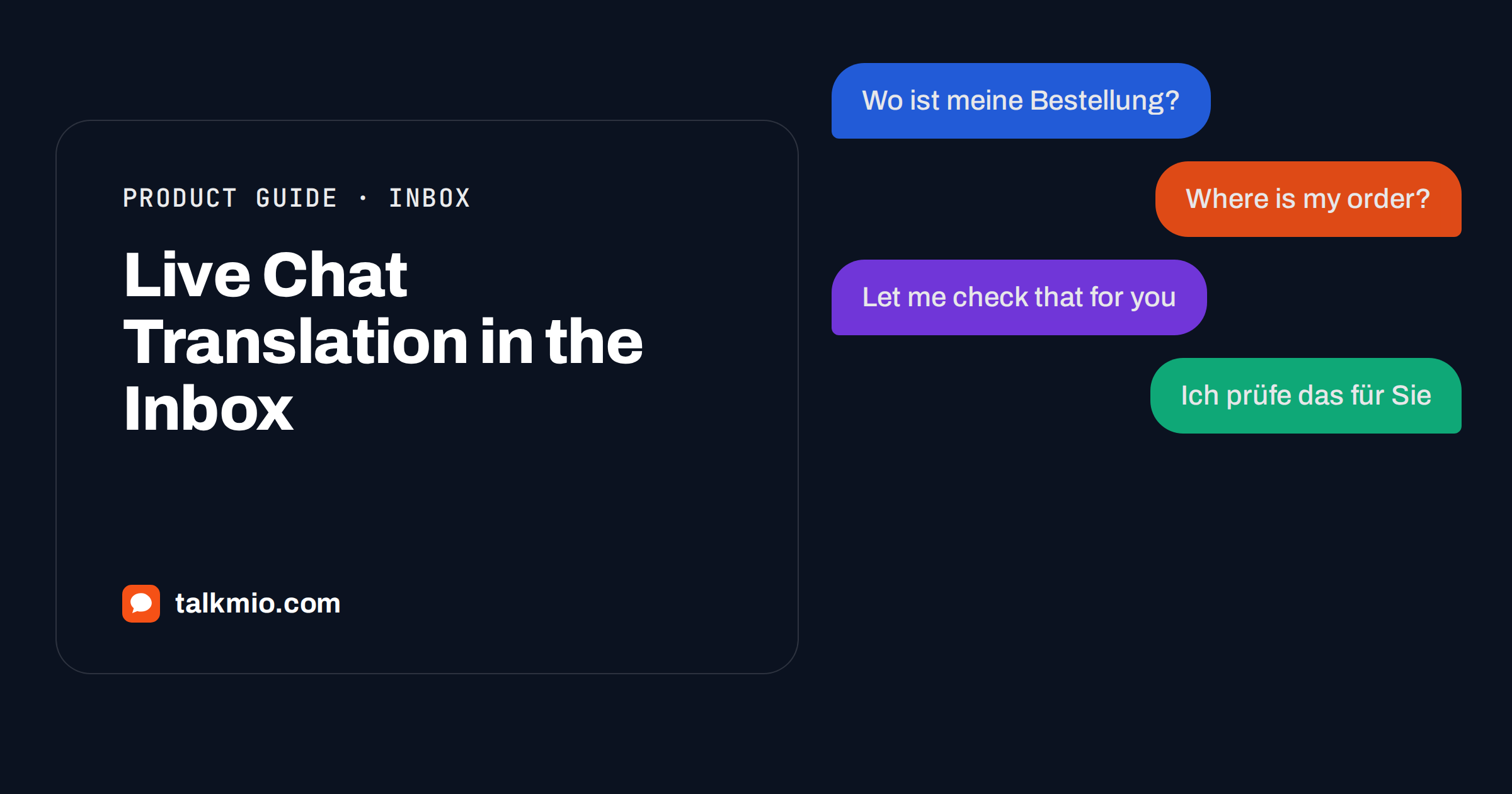
Live chat translation is the difference between a team that can only serve visitors in one language and a team that can serve almost anyone. A visitor writes in German, Polish or Spanish, an agent reads the message in English, writes a reply in English and sends it in the visitor’s language. This guide shows how live chat translation works inside the Talkmio Inbox: the Translate and Polish buttons, the translate link under each visitor message, how Mio handles languages by itself, and the habits that keep translated replies accurate and friendly.
Talkmio is an AI live chat for websites. Its assistant, Mio, reads your website, FAQ and uploaded documents and answers only from that content in the visitor’s language. When Mio hands the chat to a person, the Inbox gives that person tools to understand and answer in the same language, even if they do not speak it.
Where Live Chat Translation Helps
Many sites receive messages in more than one language, even when the site itself is in one. A shop in Lithuania gets questions in English and Russian. A software company in Germany gets Polish, Turkish and French. A hotel gets guests from everywhere. Hiring agents for every language is rarely possible, and machine translation is good enough for ordinary support, as long as you use it with care. The general idea is explained in the overview of machine translation, and the wider practice of adapting a product to a market is described under language localisation.
In practice, live chat translation helps in three situations: Mio hands over a chat in a language the agent does not read well, a visitor writes to a ticket or e-mail in another language, and an agent writes in a second language and wants the reply to sound natural. Each situation uses a different tool in the Inbox.
What Mio Already Does
Before the team gets involved, Mio handles the language question itself. Mio replies in the language the visitor writes in, such as Lithuanian, English, German, Polish, Russian, Spanish, French and more than 30 others. The chat window is translated too, so buttons and texts appear in the visitor’s language. Questions in one language also find answers written in another: a Lithuanian question can be answered from an English FAQ page.
That means you do not need to translate your whole website to offer multilingual help. A single well-written English knowledge base can serve many visitors, though content written in the visitor’s own language will still sound more natural. Our guide to AI chatbots in multiple languages explains how to plan content for this.
The Three Translation Tools in the Inbox
| Tool | Where you find it | What it does |
|---|---|---|
| Translate under a visitor message | Below the message in the conversation | Shows the message in your language |
| Translate in the reply box | Reply box buttons | Turns your draft into the visitor’s language |
| Polish in the reply box | Reply box buttons | Fixes grammar and tone in your draft |
| Suggest in the reply box | Reply box buttons | Drafts a reply from your knowledge base |
All four work inside the Inbox, so there is no copy and paste into another tool. The first two are the heart of live chat translation, and Polish and Suggest make the result better. Let us walk through a real workflow.
A Step-by-Step Workflow
- Open the conversation. In the Inbox, choose a chat from the list. Use the filters, such as Unanswered or Mio replied, to find it quickly.
- Read the visitor message in your language. Click translate under the message. The translated text appears for you only; the visitor still sees their own words.
- Write your answer in your own language. Use the reply box as usual. If you want a draft first, press Suggest and the Inbox drafts a reply from your knowledge base. Edit it until it says what you mean.
- Press Polish if needed. Polish fixes grammar and tone. It helps when you write in a second language, or when a message sounds too blunt.
- Press Translate. The draft turns into the visitor’s language. Read it once, and check names, numbers, dates and prices.
- Send. The reply appears in the visitor’s chat in their language, or goes out by e-mail if the visitor has left their address and your team was offline.
The whole sequence takes less than a minute once you are used to it. For repeated answers, combine it with quick replies, inserted with a slash in the reply box, so that standard text is ready in several languages. Our guide to canned responses in live chat shows how to build a good set.
Keeping Translations Accurate
Automatic translation is good with ordinary sentences and weak with idioms, humour and sentences that depend on context. A few habits prevent most mistakes.
- Write short, plain sentences. “Your order was shipped on Monday” translates better than “Good news, we’ve gotten that on its way”.
- Avoid idioms and jokes. They rarely survive translation.
- Check the numbers. Dates, prices, quantities and times must match the original after translation. Date formats differ by country, so write the month as a word.
- Keep product names unchanged. Do not translate plan names, product codes or brand names.
- Re-read legal or financial promises. If a message commits you to a refund or a deadline, ask a colleague who speaks the language to check it, or send it in a simpler form.
When the stakes are high, such as a complaint or a refund, slow down. A calm, clear sentence translated correctly is worth more than a long clever one translated badly. Our guide to angry customers in live chat covers the tone you need in these cases.
Setting Language Options for the Widget
The widget has a language setting in the website settings: auto-detect or fixed. Auto-detect follows the visitor’s browser and suits most multilingual sites. A fixed language suits a site that serves only one market. Welcome and offline texts can also be set, so check that they read well in the languages you serve. Changes apply within five minutes. Our article on chat widget language settings explains the options in detail.
For international visitors, remember that live chat translation is not only about messages. Opening hours should be written with a time zone, currency should be stated and a plain line such as “Our team replies in English and Lithuanian” sets honest expectations.
Translation, Tickets and E-mail
Many conversations continue by e-mail. When your team is offline, visitors are asked for an e-mail before their first message, and your later reply from the Inbox goes out as an e-mail. On Pro and above, customer e-mails forwarded to the Talkmio address also become tickets. The same translation tools work in the Inbox when you reply, so a Spanish e-mail ticket can be answered in Spanish by an agent who writes in English. Keep the thread in one place and add an internal note, which only your team sees, such as “Customer writes in Spanish, translate replies”.
Privacy When You Translate
Good habits matter as much as good tools, and privacy is the first of them.
Customer messages are personal data. Talkmio stores data on servers in the EU (Germany), and only the conversation text and relevant knowledge base excerpts are sent to the AI model provider. Do not paste customer text into outside translation websites; the Inbox tools keep the work in one place. If you need to remove a conversation, you can export or delete your data at any time by writing to support. For rules that apply in Europe, see our guide to GDPR and live chat.
Training Your Team to Use It
A tool that nobody practises will not help on a busy afternoon, so build a little routine around live chat translation from the first week.
Give every agent a one-page cheat sheet: how to translate a message, how to translate a reply, what to check before sending and when to ask a colleague. Run a short practice session with five old chats in different languages. Review a sample of translated replies once a month during your weekly support review, and add the best ones to quick replies. New agents learn faster from real examples than from rules.
Three Everyday Scenarios
Abstract steps are easy to forget, so here are three situations that happen every week in a multilingual inbox.
A question Mio could not answer
A visitor from Poland asks whether a product works with an older device. Your content does not mention it, so Mio tells the visitor it is connecting them with a person. The chat arrives in your Inbox with a needs-human badge and the full history. You press translate under the visitor’s message, read the question in English, check the technical sheet and write a short answer. Translate turns it into Polish, and you send it. The visitor never waited for a Polish-speaking colleague.
A complaint in a language you do not read
A customer writes an angry message in Italian. Read it twice in translation, because the first reading often feels harsher than the original. Write a calm reply in your own language: apologise for the problem, say what you will do and when. Use Polish to soften any blunt phrase, translate, and read the result before sending. If the case involves money, add an internal note with the facts so that a colleague who takes over has the context.
A visitor who mixes two languages
Some visitors write half in English and half in their own language. Mio handles this, and the translate link handles it as well. Reply in the language that the visitor used for the most important part of the message, and keep your sentences short. If the visitor switches language mid-chat, follow them.
Measuring Whether It Works
Talkmio reports conversations per day, the share answered by Mio alone, hand-offs, first-reply time, ratings, busiest hours in your time zone, channels, countries and team performance. The countries view is useful here: if a country sends many chats, consider writing some content in its language so that Mio can answer more of those chats alone. Compare ratings from countries where your team relies on translation with ratings from your home market. If the ratings differ, review a sample of translated replies and adjust your style. Our guide to live chat reports and analytics explains each report.
Frequently Asked Questions
Can Talkmio translate a visitor’s message for my team?
Yes. Under each visitor message in the Inbox there is a translate option that shows the message in your language. The visitor still sees their original words. Use it to understand a chat that Mio handed over in a language you do not read well.
How do I reply in the visitor’s language?
Write your reply in your own language in the reply box, then press Translate. The draft turns into the visitor’s language. Read it once, check numbers and names, and send. The Polish button can fix grammar and tone before you translate.
Does Mio answer in other languages by itself?
Yes. Mio replies in the language the visitor writes in, including Lithuanian, English, German, Polish, Russian, Spanish, French and more than 30 others. It answers only from your content, and a question in one language can find an answer written in another.
Is translated text always correct?
No translation tool is perfect. It handles plain sentences well and idioms badly. Write short sentences, check dates, prices and names, and have a colleague review any message that carries a legal or financial promise before it is sent.
Does the visitor see that a reply was translated?
The visitor sees the reply in their own language. The Inbox shows the original and translated text to your team. If you want to be open about it, add a line to your contact page saying which languages your team handles directly.
Do I need a paid plan to use translation in the Inbox?
The pricing page lists what each plan includes, and every plan includes Mio AI answers, live chat and tickets. Check the current plan details on the pricing page before you plan your team around specific tools, and try the Inbox on the free plan first.
The Bottom Line
Live chat translation lets a small team serve a multilingual audience without hiring in every language: Mio answers in the visitor’s language from your content, the translate link shows you what they wrote, and Translate and Polish help you reply. Keep sentences short, check numbers and keep humans responsible for promises. Start free with Talkmio and try the Inbox with a message in a language you do not speak.