
 Lietuviškai
 Deutsch
 Français
 Русский
 Español
 Polski
 Italiano
 Українська
 Čeština
 Português
 日本語
日本語 Latviešu valoda
 Eesti
Eesti Magyar
 Bahasa Indonesia
 Türkçe
 हिन्दी
 Ελληνικά
 العربية
 ไทย
ไทย Tiếng Việt
 Română
 Bahasa Melayu
 বাংলা
বাংলা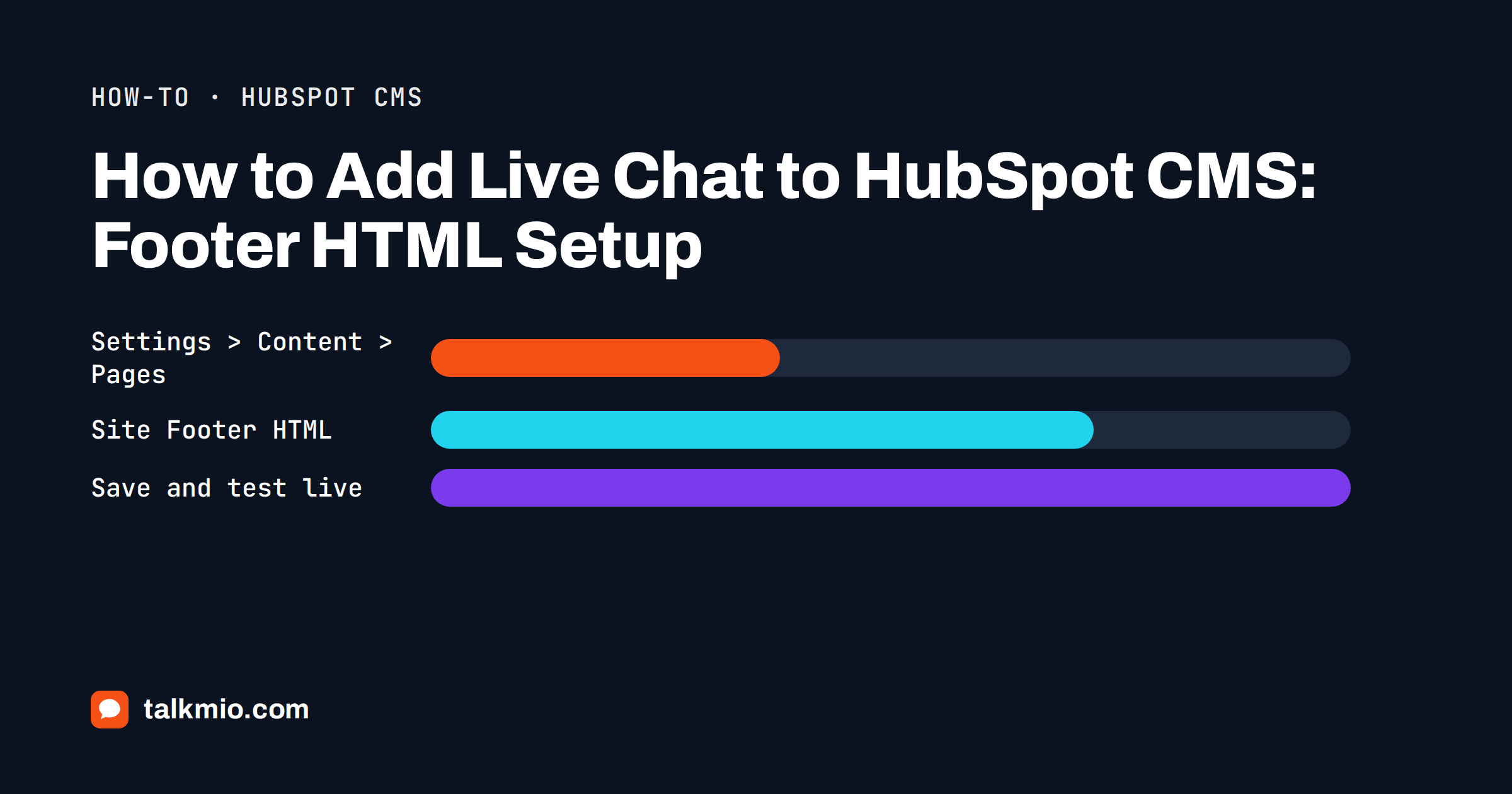
To add live chat to HubSpot CMS, you paste your Talkmio snippet into the Site Footer HTML setting for your domain and save. The chat bubble then appears on the pages HubSpot hosts on that domain, and Mio, the AI assistant from Talkmio, starts answering visitors from your own content. You need the right permission, a few minutes and a published page to test on.
This guide explains the exact steps, the difference between domain-wide and per-page code, how landing pages, blog posts and knowledge base articles behave, and what to check afterwards. It also covers the points that surprise HubSpot users most often: the quotes caveat, the missing per-post field and the need to test on the live page, not in the editor.
What You Need Before You Start
- A Talkmio account. The Free plan needs no card and includes 1 operator, 1 website, 50 AI answers a month and 20 knowledge base pages.
- Your install snippet. In app.talkmio.com, open Websites, add your domain and copy the snippet. It contains your site key.
- The HubSpot permission. HubSpot’s own guide says you need website settings permission to add code snippets at the domain level.
- A published page. You will test on the live address, so have at least one page published on the domain.
The snippet is one script tag, and it loads separately from the rest of your page. If you want to know what loading attributes do, the MDN reference for the script element explains them in plain language.
Add Live Chat to HubSpot CMS Domain-Wide
The domain-level route is the quickest, because one change covers every page on the domain. The steps follow HubSpot’s guide to code snippets.
Step 1: copy the Talkmio snippet
Copy the whole script tag from Websites in the Talkmio app. If you copy only the address inside it, nothing will load.
Step 2: open the domain settings in HubSpot
Click the settings icon in the top navigation bar, then go to Content and open Pages. Under Choose a domain to edit its settings, select the domain where you want the chat.
Step 3: paste into Site Footer HTML
Find the Site Footer HTML section and click Override default settings. Paste the Talkmio snippet into the box. If another script is already there, such as an analytics tag, add the Talkmio tag below it and not inside it.
Step 4: save and test on the live page
Click Save. Open a published page of your domain in a private browser window and look for the chat bubble in the corner. The footer position is where HubSpot places this code, and it matches Talkmio’s recommendation to load the snippet at the end of the page body.
Domain-Wide or Per-Page: Which Route to Use
| Route | Where to set it | Covers | Best for |
|---|---|---|---|
| Domain-wide | Settings, Content, Pages, Site Footer HTML | Website pages, landing pages and blog posts on the domain | Chat on the whole site |
| Single page | Page editor, Settings, Advanced, Footer HTML | That one page | Chat on a few high-value pages only |
| Template or theme | Design tools | Every page that uses the template | Developers who manage templates in code |
| Google Tag Manager | Container you control | Wherever the container loads | Teams that already manage scripts through a container |
For most marketing sites, the domain-wide route is right. Use the single-page route when you want chat on a pricing page and a contact page but nowhere else. If you load scripts through a container, our guide to live chat with Google Tag Manager explains that option.
Per-Page Steps and the Content Types That Differ
To add the chat to one page, open the page in HubSpot, click Settings in the content editor, choose Advanced and paste the snippet into the Footer HTML field. Publish or update the page.
Two details matter here. First, HubSpot says the footer HTML field is not available for individual blog posts or knowledge base articles, and system pages are not supported for per-page footer HTML. Second, HubSpot says domain-level footer code still applies to those content types, so the domain-wide route is how you cover a blog. HubSpot’s help material is not always consistent about knowledge base articles, so test one article after publishing instead of assuming.
Watch out for quotes
HubSpot warns that header or footer HTML set for all domains, or for a domain used for quotes, will also appear on quotes. If you do not want a chat bubble on customer quotes, set the code for the website domain only, and check your quote domain settings.
Check That the Chat Works
- Open the live page in a private window, not in the HubSpot editor or preview.
- Look for the bubble. It should appear on every page that loads the snippet.
- Open the chat and ask three questions your customers often ask.
- Check that answers come from your own pages. If Mio has no source, it says so and hands the conversation to your team.
- Open the Talkmio Inbox and confirm the test conversation arrived.
- Test on a phone. Make sure the bubble does not cover a form button or a cookie banner.
If the bubble is missing, view the page source and search for part of your site key. If it is not there, the snippet is on a different domain setting, the page is not published or the change was not saved.
Teach Mio Your HubSpot Site
A bubble without knowledge is not helpful. In the Talkmio app, open Mio AI and Knowledge base, and add your website address. Mio reads every public page on the same domain and respects robots.txt. You can add single pages, question and answer pairs, free text and files such as PDF, DOCX, TXT, MD, CSV and HTML up to 15 MB.
HubSpot sites often hold long landing pages and product sheets. Add them as pages, and put price lists and policies in documents. Our guide to training an AI chatbot on your website content explains what to prioritise. Then write business instructions that say what you sell, which tone to use and what Mio must never promise, and test them with Try Mio.
Landing pages and campaigns
Landing pages exist to convert, and a chat can help or distract. Decide per campaign. A long-form page with a demanding offer often benefits from chat, while a short sign-up page may not. Our article on live chat on landing pages helps you decide.
Common Problems and Fixes
- No bubble on the live page. Confirm the snippet is saved in the settings of the same domain that serves the page. HubSpot accounts can hold several domains, and each has its own settings.
- Bubble works on pages but not on a blog post. Use the domain-wide Site Footer HTML, because the per-post field is not available for blog posts.
- Bubble appears on quotes. Your code is set for all domains or for the quote domain. Limit it to the website domain.
- Another script stopped working. The snippets were probably pasted inside each other. Place each tag one under the other.
- Bubble is hidden behind a cookie banner or a sticky button. Adjust the widget position under Websites in the Talkmio app. Changes apply within five minutes.
- Answers are vague. The knowledge base is small or empty. Add your site, key pages and a price list, then test again in Try Mio.
First-Week Checklist After the Install
The installation is the easy part. What you do in the first week shapes how useful the chat becomes.
- Day one: test five real questions on the live site and fix wrong or missing answers in the knowledge base.
- Day two: set the welcome text, assistant name, colour and position under Websites. A welcome text that names a concrete topic, such as pricing or demos, gets more replies than a generic hello.
- Day three: set business hours and the offline text. When the whole team is offline, visitors are asked for an e-mail before their first message, and your reply goes out as an e-mail.
- Day four: install the Talkmio mobile app for iOS or Android so hand-offs reach you as push notifications.
- Day five: invite teammates under Team. Agents handle conversations, and Admins also manage websites, Mio and settings.
- End of the week: read the conversations that were handed over. Each one points to a missing page or a missing instruction.
Keep notes on what visitors ask on which pages. If the same question comes up on a landing page every day, change the page, and the chat will have less to answer.
Handing Leads to Your Team
When Mio cannot answer from your content, when the visitor asks for a person, complains or asks about a specific order, the chat is handed to your team. The conversation gets a needs-human badge, your team gets a browser notification in the Inbox, and an e-mail and a push notification on the mobile app if nobody is online. With a required or optional pre-chat form, you can collect a name and an e-mail, and the Contacts section keeps everyone who ever wrote to you.
Talkmio works alongside HubSpot, not as a replacement for it. Use the contact details from Talkmio in your own follow-up routine. For plans and limits, see the pricing page; the integrations page lists every supported platform, including HubSpot CMS.
Frequently Asked Questions
Where do I paste the live chat snippet in HubSpot CMS?
Click the settings icon, go to Content, then Pages, select your domain and find Site Footer HTML. Click Override default settings, paste the Talkmio snippet and save. Test on a published page of that domain in a private browser window, not in the editor. You need website settings permission to change domain-level code.
Can I add the chat to only one HubSpot page?
Yes. Open the page, click Settings in the content editor, choose Advanced and paste the snippet into the Footer HTML field, then publish or update the page. HubSpot says this field is not available for individual blog posts or knowledge base articles, so use the domain-wide setting to cover those.
Will the chat bubble appear on HubSpot quotes?
It can. HubSpot warns that header or footer HTML configured for all domains, or for a domain used for quotes, will appear on quotes as well as website content. To avoid it, set the code only for the website domain and review the settings of any domain used for quotes.
Does the chat work on HubSpot blog posts?
Domain-level footer code applies to blog posts hosted on that domain, according to HubSpot’s guide, while the per-post footer field is unavailable. After saving, open a published blog post in a private window and confirm the bubble appears. Check a knowledge base article separately, because HubSpot’s help material is not always consistent about it.
Do I need a developer to add live chat to HubSpot CMS?
No. Pasting one script tag into Site Footer HTML is a settings change, not a template edit. You do need the right HubSpot permission. If you prefer to manage scripts in a container, Google Tag Manager is another route, and a developer can place the snippet in a template.
Can I try it on the free Talkmio plan?
Yes. The Free plan needs no card and includes 1 operator, 1 website, 50 AI answers a month, 50 tickets a month, 20 knowledge base pages and 30 days of history. That is enough to install the chat on your HubSpot domain and test real questions before choosing a paid plan.
The Bottom Line
To add live chat to HubSpot CMS, paste the Talkmio snippet into Site Footer HTML for your domain, save, and test on a live page in a private window. Use the per-page field for a few pages, watch the quotes caveat and spend your first hour on the knowledge base, since answers matter more than the bubble. Create a free Talkmio account, install the snippet and ask Mio your own most common question today.